How to Set Up a Multi-Monitor Home Office — The Gear You Actually Need
A practical walkthrough for going from one cramped laptop screen to a productive multi-monitor setup, without buying gear you don't need.
By the DopamineKart editors
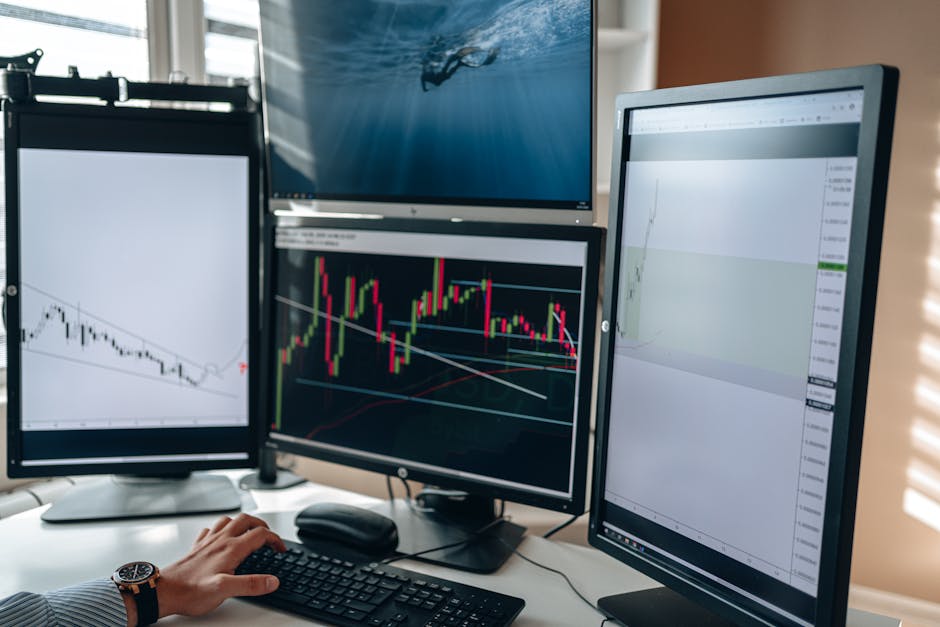
A practical walkthrough for going from one cramped laptop screen to a productive multi-monitor setup, without buying gear you don't need.
Look at your computer's available ports (HDMI, DisplayPort, USB-C/Thunderbolt) and how many external displays your graphics chip actually supports simultaneously. Many laptops cap out at two external displays without a dock.
Two monitors cover most workflows; three adds diminishing returns unless you do heavy multitasking (trading, video editing, coding with references). More screens also means more desk depth and neck movement.
Mismatched resolutions or sizes make windows look inconsistent when dragged between screens. Aim for identical or near-identical panels, ideally 24–27 inches for desk work.
A USB-C or Thunderbolt dock lets one cable carry video, power, and peripherals to your laptop, which keeps the desk cable-free and makes daily docking/undocking simple.
Adjustable arms free up desk space, let you align screen heights precisely, and make it far easier to angle monitors correctly for your neck and eyes.
In Windows or macOS display settings, arrange the virtual layout to match your physical desk layout, and set the correct scaling for each screen so text sizes feel consistent.
The top of each screen should sit roughly at eye level, with the main display centered directly in front of you and secondary displays angled slightly inward.
Route power and video cables through arm clips or a cable tray under the desk so the setup stays usable and doesn't turn into a tangle every time you move a monitor.
A solid multi-monitor home office comes down to matching your hardware's real capabilities to your screens, then investing in arms and a dock that keep the desk organized. Get the port and resolution math right first, and the rest of the setup falls into place quickly.
Not usually for basic office work — most modern integrated graphics can drive two external displays. Only heavy graphics workloads or three-plus 4K screens typically require a dedicated GPU.
Yes, but matching size and resolution across displays makes for a more consistent visual experience when moving windows between them.
It's necessary if your laptop doesn't have enough native ports to drive your monitors plus peripherals at once, or if you want single-cable docking convenience.
Affiliate disclosure. DopamineKart is a participant in the Amazon Services LLC Associates Program. As an Amazon Associate, DopamineKart earns from qualifying purchases — at no extra cost to you, and it never changes a verdict. Sources. Recommendations are our editorial opinion; verify current specs and availability before buying.
Corrections: email us